

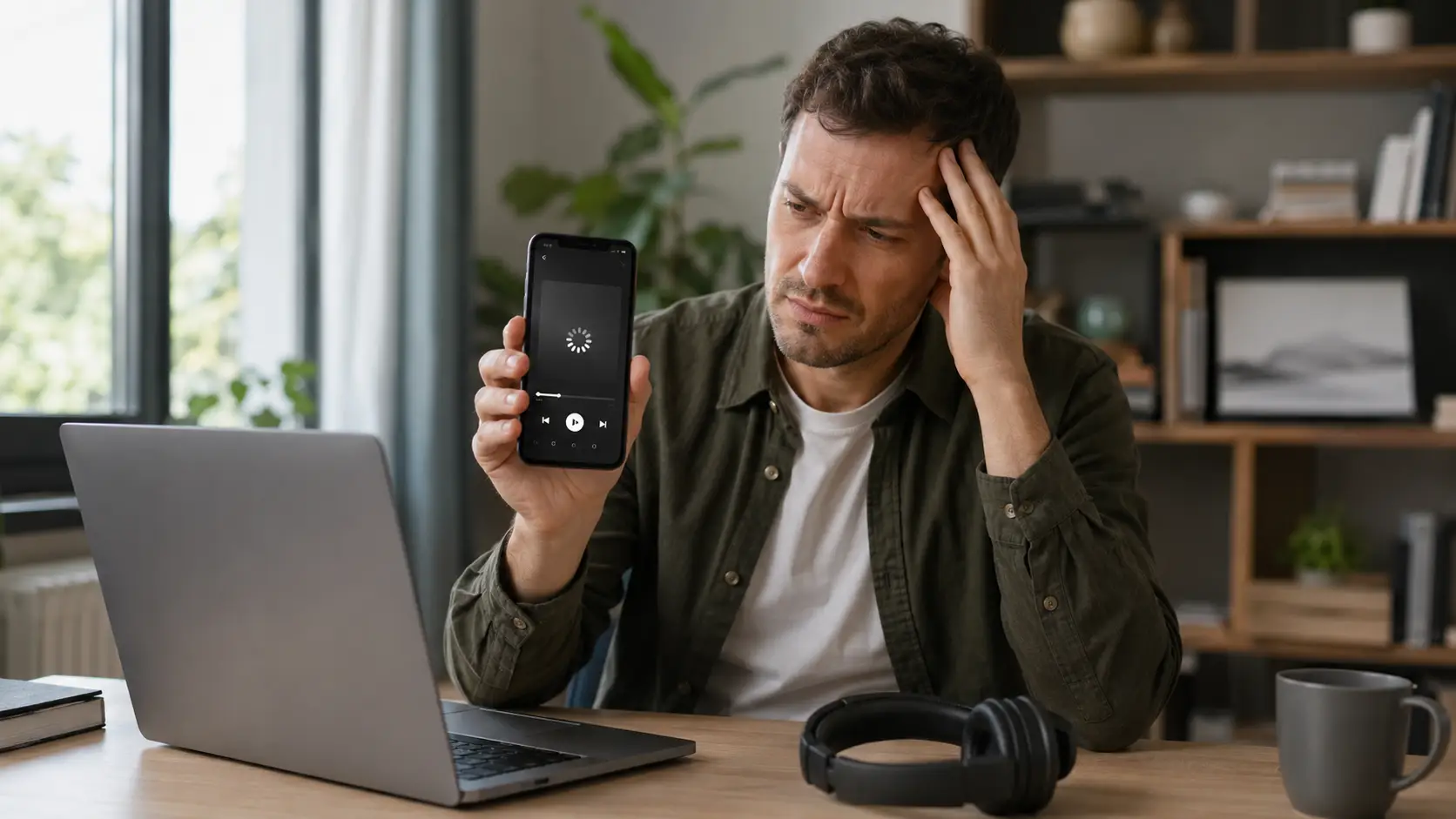
If you see error code ID-15 Audible, check the letters carefully before troubleshooting. Audible’s current public error-code table, updated on 3 September 2026, does not show ID-15 in its visible list of download errors.
However, IP-15 and AP-15 are listed and mean that the Recap feature is not available for that particular title. Audible confirms that codes beginning with ID- or AD- relate to downloads, while IP- or AP- codes relate to playback.
Therefore, an actual ID-15 message should be treated as a download-related problem, but its precise meaning should not be presented as officially confirmed unless Audible’s full reference file specifically defines it.
For an actual download problem, start by checking the exact code, removing the failed download, changing Audible’s download quality from Standard to High, checking the connection, updating the app and restarting the device.
What Does Audible Error Code ID-15 Actually Mean?
Audible uses different prefixes to classify problems:
- ID / AD – Download errors
- IP / AP – Playback errors
The distinction matters because people searching for “Audible error code 15” may actually be seeing IP-15, AP-15, ID-15 or even ID-16.
Audible’s current official error-code guidance lists common download errors ID-0 through ID-4 and ID-16. ID-15 is not displayed in that public table.
That means it is safer to describe ID-15 as an apparently download-related code based on Audible’s prefix system, rather than assigning it a specific official definition that Audible does not currently display publicly.
If the screen actually says IP-15 or AP-15, there may be nothing wrong with the audiobook. Those codes simply mean that the title does not support Audible’s Recap feature.
Audible ID-15, IP-15 and Other Similar Error Codes
| Error Code | Audible’s Current Meaning | What To Do |
| ID-15 | Not shown in Audible’s visible public download-error table | Confirm the exact code and use download troubleshooting if it really starts with ID |
| IP-15 / AP-15 | Recap is not available for the title | No repair is normally required |
| ID-16 / AD-16 | Not enough device storage | Free storage and retry |
| ID-0 / AD-0 | Download cancelled | Try downloading again |
| ID-1 / AD-1 | Server error | Retry the download |
| ID-2 / AD-2 | Download-link problem | Retry |
| ID-3 / AD-3 | File-location problem | Retry, then delete and redownload if necessary |
| ID-4 / AD-4 | Download link expired | Allow the automatic retry or start again |
| IP-11 / AP-11 | Temporary playback problem | Audible advises waiting 24 hours and trying again |
This comparison is particularly useful because audible error IP-15, Audible AP-15 and Audible error ID-16 can easily be mistaken for ID-15 when the message appears briefly on a phone or tablet.
How To Fix an Actual Audible ID-15 Download Problem?

1. Check the Exact Error Code First
Before changing any settings, take a screenshot of the error.
Confirm whether it says:
- ID-15
- IP-15
- AP-15
- ID-16
- Another ID or AD code
This avoids spending time fixing downloads when the message is actually telling you that the Recap feature is unavailable.
2. Remove the Failed Title and Retry
Audible’s current download-error troubleshooting says that most of its recommended troubleshooting steps require the affected title to be removed first.
After removing the failed or incomplete download, return to the Library and start the download again.
If other audiobooks download normally but one title repeatedly fails, the problem may be specific to that title rather than the entire Audible app.
3. Change Download Quality From Standard to High
Previous troubleshooting advice sometimes suggested lowering the audio quality to reduce file size. Audible’s current instructions are different.
Audible now specifically tells users experiencing download errors to:
- Open Profile
- Select Settings
- Open Data & storage
- Change quality from Standard to High
- Return to the Library
- Try downloading the title again
This should therefore be tested before experimenting with other audio settings. Audible also allows Standard and High quality to be selected through its download settings.
4. Test Wi-Fi and Mobile Data
If Audible is not downloading, switch connections. Try mobile data if the problem occurs on Wi-Fi, or connect to another private Wi-Fi network.
If Audible works through mobile data but repeatedly fails through home Wi-Fi, the problem is more likely to involve the router, DNS configuration, network filtering or internet connection than the Audible account itself.
Restart the router before making more advanced network changes. If custom DNS, parental controls, a firewall, VPN or ad-blocking DNS service is being used, temporarily disabling it can help identify whether it is interrupting the connection.
5. Update Audible and Restart the Device
Audible recommends checking for the latest app version on both iOS and Android, signing out and back in and rebooting the device when download errors continue.
Make sure the same Amazon or Audible account used to acquire the title is used when signing back in.
What To Check on Android?
Android users have several additional checks available. First, clear Audible’s temporary cache rather than deleting all app data. Google explains that clearing an app cache removes temporary files, while clearing app storage removes the app’s stored data.
Audible also recommends reviewing its battery setting on Android. Setting Audible to Unrestricted allows it to continue operating in the background, although this can increase battery use.
A practical Android sequence is:
- Update Audible
- Clear its cache
- Check free storage
- Allow background battery use if downloads are being interrupted
- Restart the phone
- Retry the title
Menu wording varies between Android manufacturers.
What To Check on iPhone or iPad?
On iOS, check whether power or data-saving features are restricting background activity. Apple confirms that Low Data Mode limits background network use and turns off Background App Refresh. Low Power Mode can also disable automatic downloads and Background App Refresh.
For troubleshooting, temporarily check:
- Low Data Mode
- Low Power Mode
- Background App Refresh
- Audible’s mobile-data permission
- Available storage
- App Store updates
If changing one of these settings fixes the download, it can then be restored individually to determine which setting caused the interruption.
What About Audible Error Code 15 on Kindle or Fire Tablet?
A message described simply as “code 15” on a Kindle should not automatically be assumed to mean Audible ID-15. Amazon identifies incorrect device time, outdated software and account-registration problems as possible causes of Kindle registration problems.
Its troubleshooting includes checking the date and time, updating the software, confirming Wi-Fi and restarting the Kindle.
On a Fire Tablet, Audible recommends rebooting the device, deleting and redownloading affected audiobooks, changing download quality and checking for system updates when playback problems occur.
Deregistering and registering the device again can be considered later if account or content synchronisation remains broken, but it should not be the first step because it temporarily disconnects the device from Amazon content and services.
What Should Windows Users Do?
Audible titles do not have to be downloaded to a Windows computer simply to listen. Audible’s Cloud Player supports current versions of Chrome, Firefox, Safari and Microsoft Edge, allowing titles to be streamed directly from the Library.
Windows 10 and Windows 11 users can also use AudibleSync where supported for compatible MP3 players and accessibility devices. If the mobile app refuses to download a title, testing the Cloud Player can help establish whether the account and audiobook remain accessible.
Can Alexa or Another Device Be Used Instead?
Yes. Audible supports Alexa-enabled devices and allows audiobooks from the Audible Library to be played through Alexa.
If a title works through Alexa or the browser but refuses to download to one phone, that is useful evidence that the problem is more likely to be device, app or network related.
Listeners can also temporarily stream the title instead of downloading it or use another supported device while troubleshooting continues.
How To Check Whether Audible Is Down?
When several unrelated titles suddenly stop working, check whether other users are reporting problems before repeatedly reinstalling the app.
A service-monitoring platform such as Downdetector can show unusually high levels of user outage reports. These reports are useful indicators but are not the same as an official Audible confirmation.
Audible also operates an Audible Support account on X for customer-care information.
When Should Audible Support Be Contacted?
Contact support when the same actual ID-15 error continues after testing more than one network, restarting the device, updating Audible and retrying the affected title.
Before contacting support, record:
- Exact error code
- Full error message
- Audible app version
- Device model
- Operating-system version
- Affected audiobook or podcast
- Whether other titles work
- Whether Wi-Fi and mobile data were tested
- Whether another device works
- Approximate time the error appeared
Audible now provides a diagnostic-log upload process for both Android and iOS.
On Android, diagnostic logs can be submitted through Profile → Settings → Help & Support → Share app diagnostics. On supported app versions, a six-digit code is produced that can be given to Customer Service.
iOS users can access the diagnostic-data option from Audible’s Settings screen.
Audible Customer Service can then use the diagnostic information to investigate technical problems.
Should You Reinstall Audible?
Reinstalling should usually be a later troubleshooting step. Removing the app may delete audiobooks stored locally for offline listening, meaning they will have to be downloaded again.
Before reinstalling, confirm that:
- You know the correct account login
- Purchased titles appear in your account
- Listening progress has synchronised
- You have a reliable internet connection
Try the less disruptive troubleshooting steps first.
Avoid Unofficial Audible Download Converters
Third-party tools that promise to bypass Audible downloads, convert protected audiobooks or remove DRM are not necessary for fixing an Audible error.
They are not part of Audible’s official troubleshooting process and can introduce account, security, copyright or terms-of-service concerns. For an error-code problem, use Audible’s supported app, browser player, device options and Customer Service instead.
Final Takeaway
The most important thing about error code ID-15 Audible is not to confuse it with similarly numbered codes. As of September 2026, Audible’s visible official error-code table does not provide a specific definition for ID-15.
It does confirm that ID and AD prefixes relate to download problems. By contrast, IP-15 and AP-15 mean that Recap is unavailable for the title, while ID-16 means there is not enough storage.
If the message genuinely says ID-15, confirm the code, remove the failed download, change quality from Standard to High, test another connection, update Audible and restart the device.
Android and iOS users should also check background, battery, data and storage restrictions.
If the error survives those checks across different networks or devices, submit Audible diagnostic logs and contact Customer Service rather than repeatedly reinstalling the app.
Frequently Asked Questions
What Does Error Code ID-15 Mean on Audible?
Audible’s public September 2026 error table does not visibly define ID-15. ID-prefixed codes are download-related, so an actual ID-15 should be treated as a download issue while avoiding claims about a specific cause that Audible has not publicly confirmed.
Is Audible IP-15 the Same as ID-15?
No. IP-15 and AP-15 mean that the Recap feature is unavailable for that title. They are playback codes rather than download codes.
What Is Audible Error ID-16?
ID-16 or AD-16 means there is not enough storage on the device. Freeing space and retrying the download is Audible’s recommended action.
Why Does Only One Audible Book Fail to Download?
A single failing title may have an incomplete local download or a title-specific delivery problem. Remove the failed copy, retry it and test the same title on another network or device.
Can Changing Audible Download Quality Fix the Problem?
Yes. Audible’s current download-error instructions specifically tell users to change download quality from Standard to High before trying the download again.
What Does Audible Error Code 15 Mean on Kindle?
A Kindle message containing only “code 15” should not automatically be treated as Audible ID-15. Check the exact message, device time, Wi-Fi connection, software version and Amazon account registration.
Should Audible Be Reinstalled to Fix ID-15?
Not immediately. First try redownloading the title, changing download quality, switching networks, updating the app, checking storage and restarting the device. Reinstallation is better kept as a later step.